What this is
You type what you want in plain words. The assistant writes the Python, runs it inside your open scene, looks at the result and tells you what it did. You stay in Blender or Houdini the whole time.
- YouType what you want in plain words
- AI assistantWrites the Python and decides the steps
- MCP serverPasses each action to the app
- Blender or HoudiniThe change happens in your open scene
The link between the two is called MCP (Model Context Protocol). An MCP server is a small program that sits between an assistant and another app. It tells the assistant which actions it may take there, then carries them out. The official MCP site ↗ compares it to a USB-C port for AI apps.
This does not replace knowing 3D. The assistant builds fast, but it cannot see whether a shot feels right. You still decide scale, lens, light and taste.
What you need
| Piece | What to use | Notes |
|---|---|---|
| An assistant that can reach apps on your computer | The ChatGPT desktop app (Work or Codex mode), Claude Desktop, Claude Code or Cursor | It has to be a desktop app. ChatGPT in a web browser cannot reach a program on your own machine. |
| An add-on inside Blender or Houdini | See the two sections below | It opens a door on your own computer that the assistant talks through. |
| A saved copy of your scene | Your normal file, duplicated | The assistant runs real code. Work on a copy. |
GPT-6 Astra is OpenAI’s model for this kind of work. It can read a screenshot of your viewport, and OpenAI’s launch post ↗ shows it modelling a house in Blender.
- Plans. Astra is not on the Free or Go plans. On Plus it is in the Work and Codex modes of the desktop app, with a limited number of messages every five hours. OpenAI’s help page ↗ lists what each plan gets.
- Connecting an add-on. In the ChatGPT desktop app, open Settings → MCP servers → Add server.
- Other assistants. The steps in this guide are the same for any assistant that supports MCP. Use the one you already pay for.
Blender: two add-ons to choose from
| Blender’s own MCP server | MCP for Blender | |
|---|---|---|
| Made by | Blender Lab, part of the Blender project | A community project, not connected to the Blender Foundation |
| Needs | Blender 5.1 or newer | Blender 3.0 or newer |
| Licence | GPL | MIT |
| What the assistant can do | Run Python in the scene, read what is in a file, search the Blender manual and Python reference, take screenshots, render the viewport | Run Python in the scene, look at the viewport or a camera, read the scene, bring in assets from Poly Haven, Sketchfab and Poly Pizza, generate 3D models through outside services |
| Extra accounts | None | Asset and model-generation services need their own keys, and some cost money |
Start with Blender’s own server if you are on 5.1 or newer. It is small on purpose and comes from the people who make Blender. Pick the community one if you want the asset libraries, or you are on an older Blender.
Blender’s own server: follow the steps on Blender’s page ↗. The community one is set up like this, according to its own instructions ↗:
- Install uv, a small Python tool, with its official installer.
- Add the server to your assistant. The command it should run is
uvx mcp-for-blender. - Install the add-on with
uvx mcp-for-blender install-addon, then switch on “MCP for Blender” in Edit → Preferences → Add-ons. - In the 3D viewport press N, open the MCP for Blender tab and click Start MCP Server.
Run only one assistant against Blender at a time. Two connected at once will fight over the same scene.
Houdini: one community option
SideFX has no general MCP server of its own yet. The most used community project is fxhoudinimcp ↗. It supports Houdini 20.5 and newer.
- Run
pip install fxhoudinimcp. - Run
python -m fxhoudinimcp install. It adds the Houdini package and registers the assistants it finds on your computer. - Restart Houdini and your assistant. An MCP menu appears in Houdini.
It gives the assistant more than two hundred actions: creating and wiring nodes, setting parameters and keyframes, writing VEX wrangles, working in Solaris, starting Pyro, RBD, FLIP and Vellum set-ups, and capturing the viewport.
The project does not say whether it works in the free Apprentice edition. Test that before you plan around it.
What to ask for
Ask it to look before it touches anything. This one request tells you whether the connection works and what the assistant can see.
Look at the open scene and describe it: objects, materials, lights, cameras and anything that looks broken.
Do not change anything yet.
YouLook at the open scene and describe it. Do not change anything yet.
AssistantThere are 14 objects in one collection, two lights and one camera at 50mm. Three objects have no material. I changed nothing.
YouGive those three a plain grey material called MAT_grey.
AssistantDone. MAT_grey is on Crate_02, Crate_03 and Floor. Here is the viewport.
Block out [the scene in one or two lines] with simple shapes at real-world scale.
Name every object clearly and put them all in one collection called BLOCKOUT.
Add one camera at eye height with a [35mm] lens.
When you are done, show me the camera view and list what you made.
Go through every object in [collection name].
Rename them as [prefix]_[what it is]_[number], apply scale, and set the origin to the base of each object.
Tell me which ones you skipped and why.
Build a [campfire-sized smoke] set-up in a new geometry node at /obj.
Keep it light enough to preview in the viewport.
Put the three controls I will change most on the top node: [density, speed, size].
Explain each node you added in one line.
Something is wrong: [what you see].
Before changing anything, check the scene and give me the three most likely causes, most likely first.
Then wait for me to choose.
- One step per message. Long requests time out, and a small mistake early ruins everything after it.
- Ask for a plan first on anything bigger than a chore, and correct the plan before it runs.
- Make it look. After each change, ask for a viewport capture so it checks its own work.
- Name things. “The cube” means nothing in a real scene. “SET_table_01” does.
Four good first jobs in Blender
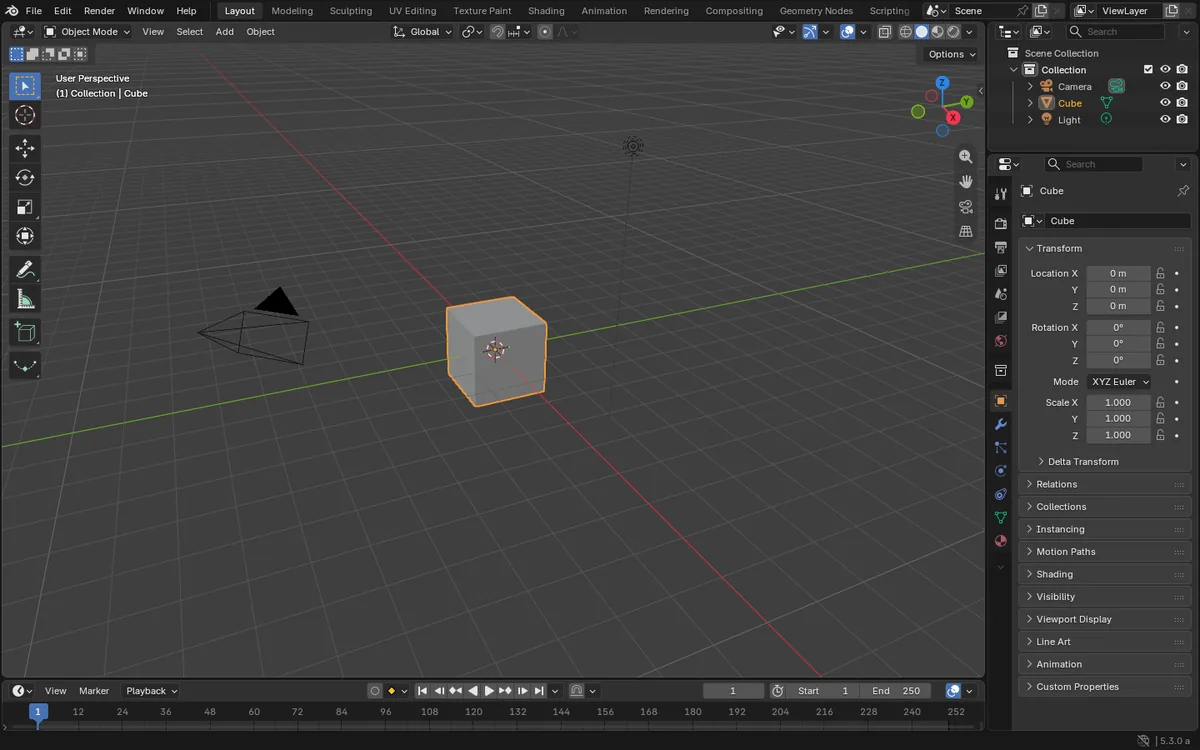
Let it read the scene first.
A new assistant knows nothing about your file. One request gives it the objects, materials, lights and cameras, and shows you the connection works.
TryDescribe this scene and list anything that looks broken. Change nothing.
Picture: Blender Manual ↗ by the Blender Documentation Team, CC BY-SA 4.0.
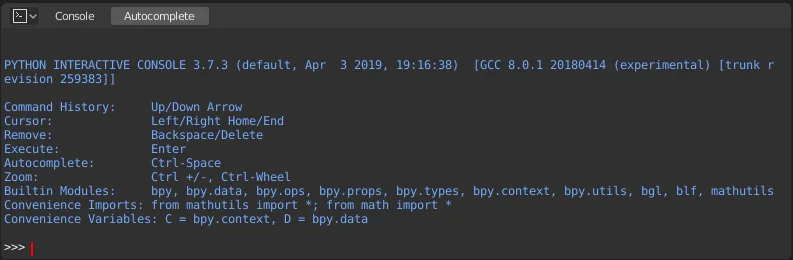
Everything it does is a script.
The assistant works through Blender’s Python, the same kind of code you could type in the Python console. Ask to see the script when you want to learn from it or keep it.
TryShow me the script you just ran and explain each line.
Picture: Blender Manual ↗ by the Blender Documentation Team, CC BY-SA 4.0.
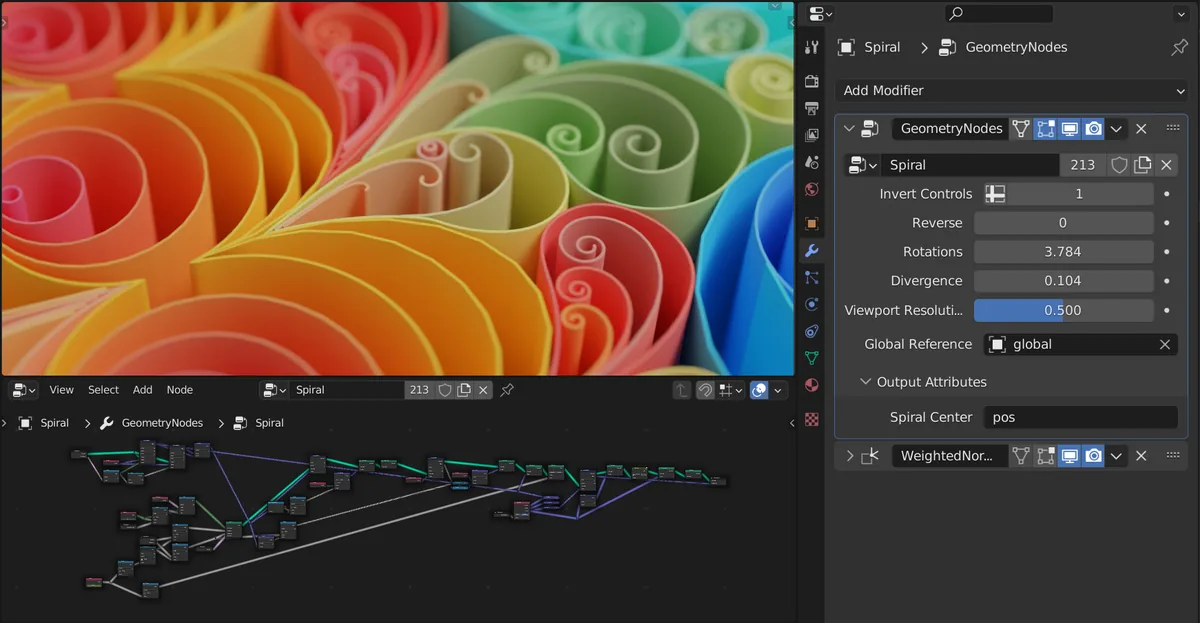
Describe a node set-up and let it wire it.
Node trees are slow to build by hand and easy to describe in words. Ask for a small tree, with the controls you will change placed on the modifier.
TryScatter 200 rocks on the ground plane with random size and rotation. Give me density and size as controls.
Picture: Blender Manual ↗ by the Blender Documentation Team, CC BY-SA 4.0.

Lock the camera with real numbers.
Give lens, height and framing as numbers. The view can then go to a render or to the Higgsfield add-on, and the layout stays where you put it.
TryAdd a camera 1.6 metres high with a 35mm lens, framed on the doorway, and show me the view.
Picture: Blender Manual ↗ by the Blender Documentation Team, CC BY-SA 4.0.
More to try in Houdini
Get a wrangle written and explained.
VEX is quick to run and slow to learn. Ask for the snippet and a line-by-line explanation, and you learn the language on your own scene.
TryWrite a point wrangle that pushes points along their normals by a noise value. Explain each line.
Start an effect from a working base.
The Houdini add-on can start Pyro, RBD, FLIP and Vellum set-ups in one step. You get something that runs, then you art-direct it.
TrySet up a small fire on this sphere, light enough to preview. Tell me which three settings change the look most.
Lay out a USD stage.
Referencing assets, adding lights and placing a camera is routine work. Let the assistant build the stage and report what is in it.
TryIn Solaris, reference these three assets, add a dome light and a camera, and show me the stage tree.
Find the node that is failing.
Big networks hide their errors. The assistant can read every node’s warnings and tell you which ones matter.
TryFind every node with an error or a warning in this network and explain each one in plain words.
Where it helps, and where it doesn’t
| Hand it over | Keep it yourself |
|---|---|
| Renaming, sorting, applying the same fix to fifty objects | Composition, lens choice and timing |
| Blocking out a set from a description | The final look of materials and light |
| Wiring up a node network you can describe | Clean topology for anything that has to bend |
| Writing a script or a VEX snippet and explaining it | Deciding when a shot is finished |
| Finding out why a render is black or an import failed | Anything a client is paying you to judge |
So is it worth switching? For chores and set-up, yes. For the creative decisions, keep working the way you do now. The left column saves hours. The right column is why people hire you.
Real examples
| Who | What they showed | Where |
|---|---|---|
| OpenAI | GPT-6 Astra modelling a house in Blender, in the demo that introduced the model | Launch post ↗ |
| Blender | Its own MCP server, built by Blender’s developers and offered as a ready-made connector for Claude | Anthropic’s announcement ↗ |
| Higgsfield | A prompt bar inside the Blender viewport that generates from the open scene | Add-on page ↗ |
| SideFX | A preview of an MCP helper for APEX rigging scripts at the Houdini 22 keynote, not yet part of Houdini | Press reports, July 2026 |
These are demos and announcements, made by the companies themselves. Treat them as proof that it can work, not as a promise about your scene.
Good to know
- Message limits. On the Plus plan OpenAI estimates 5 to 45 Astra messages every five hours. Decide what you want before you start typing.
- Clicking through the screen. Astra can also drive an app by looking at the screen and clicking, which OpenAI calls Computer Use. OpenAI’s own page recommends an MCP add-on where one exists.
- Usage records. The community Blender add-on sends a small anonymous usage record by default. Its page explains how to switch that off.
- Safe mode. The same add-on has an optional safe mode that screens scripts for file access, starting other programs and network use. It is off until you turn it on.
- Textures. Ask for 1k or 2k textures from Poly Haven. Bigger ones can freeze Blender while they load.
Keep your files safe
- It runs real code. Both Blender add-ons and the Houdini one let the assistant run any Python it writes. Save first and work on a copy.
- Keep approvals on. Let the assistant ask before each action until you trust what it does in your scene.
- The door has no lock. The add-on listens on your own computer with no password. Stop the server when you finish, and don’t run it on a shared or public network.
- Mind what is on the machine. Blender advises running its server on a computer without sensitive data, because nothing stops generated code from deleting or sending files.
- Undo is your way back. In Houdini each action is one undo step. In Blender, save versions as you go.
- Watch the meter. Messages on a paid plan are limited, and outside asset or model services charge separately.
Higgsfield inside Blender
This one is separate from MCP. Higgsfield has an official Blender add-on ↗ that puts a prompt bar over the viewport. From it you can generate images or video that start from your scene, generate 3D models, and build a set as editable geometry. It needs Blender 5.1 or newer, an internet connection and a Higgsfield account.
It uses the same credits as the Higgsfield website, and the cost shows on the button before you generate.
- Block outSimple shapes at the right size and distance
- Set the cameraLens, height and angle, as you want the shot
- GenerateAn image or video that starts from that view
Why it matters for film work: a text prompt cannot hold a camera position. A blockout can. Place simple shapes and a camera where you want them, then generate from that view, and the layout survives. The camera language is the same as in Camera moves for AI video.
How good its generated models and rigs are is Higgsfield’s own claim. Try it on a small job before you promise it to anyone.
Tools, prices and platform rules change often. Everything here was checked in November 2026; confirm on the tool’s own page before you rely on it.